Live-Translated Captions for Online Meetings: Meet, Zoom & Teams
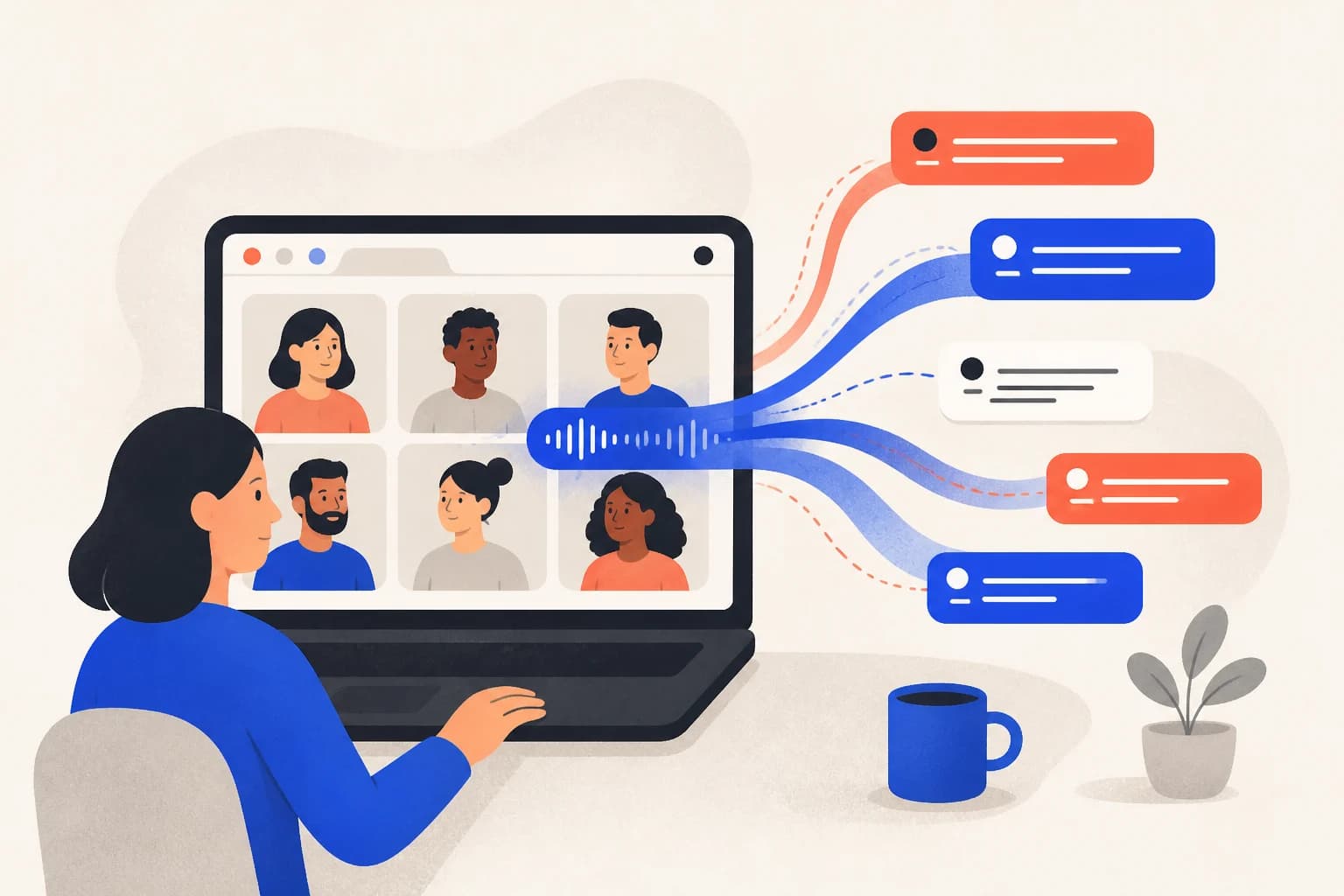
Accents, speed, and specialist terms can leave an international team behind, while waiting for a transcript is too late. You can get translated captions during the meeting without changing platforms or inviting a bot: capture the browser tab’s audio.
What are the options?
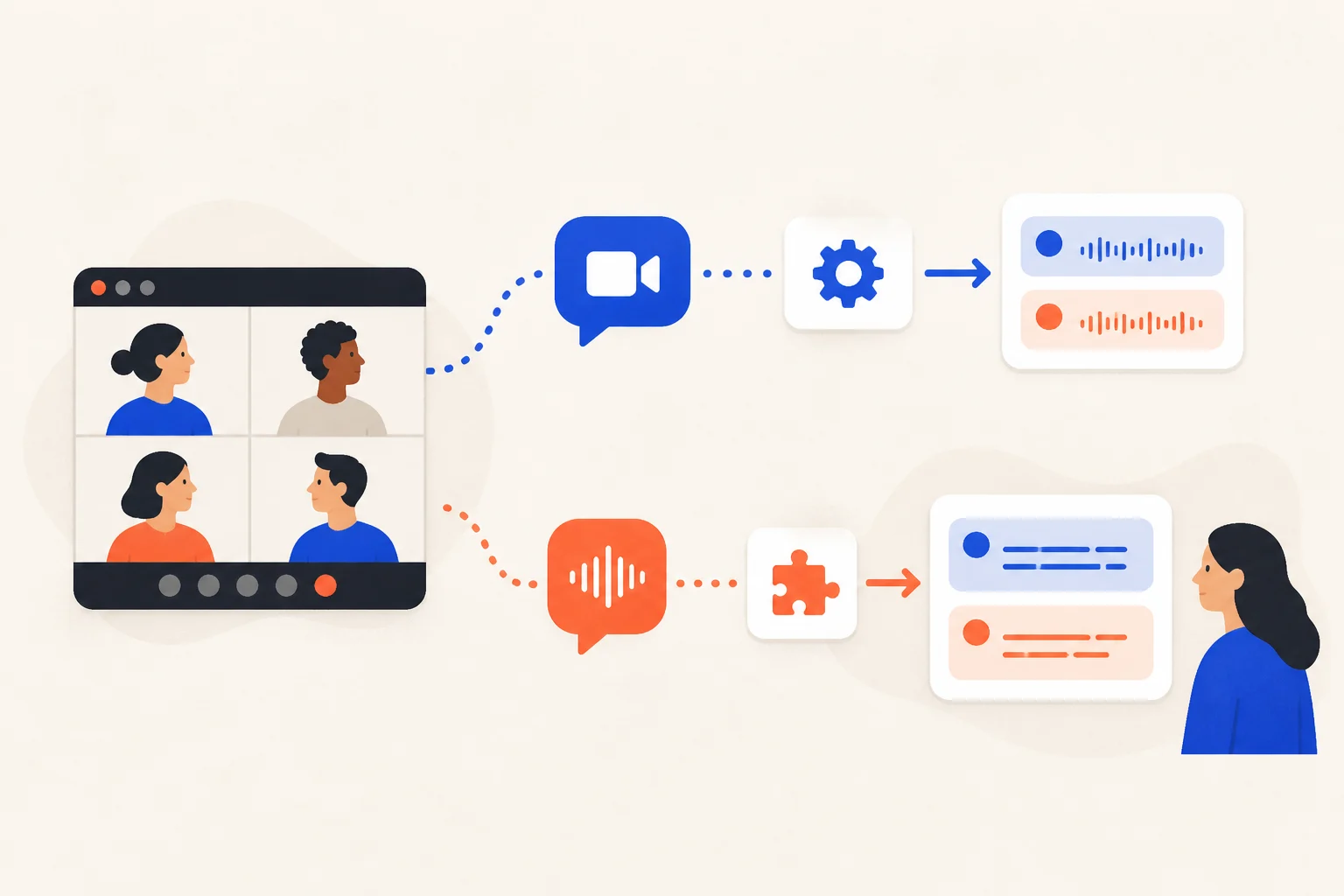
Use the meeting platform’s translated captions, or a tool such as the Avoce Chrome extension that captions tab audio. Built-in features integrate neatly but depend on plan, administrator, host, and language settings. Tab capture is controlled by each viewer and works across platforms.
What should you check first?
- Eligibility: translated captions may require a particular plan, add-on, or administrator setting.
- Control: host and participant language controls differ by platform and event type.
- Scope: built-in captions stop when you move to another meeting, video, or streaming service.
- Current rules: verify official documentation and test before a live meeting.
Translate any meeting tab with Avoce
- Install Avoce from the Chrome Web Store.
- Sign in once at avoce.ai; the extension uses the same session.
- Open the Meet, Zoom Web, or Teams Web tab and select the Avoce toolbar icon.
- Choose source and target languages, then start translating the tab.
- Move or resize the bilingual overlay while the original audio continues playing.
Why tab-audio capture?
- One workflow works with Meet, Zoom Web, Teams, YouTube, and live streams.
- No meeting bot or host setting is required.
- Each participant independently chooses the language they need.
How many points does it use?
Live translation uses 1 point per minute, or about 60 points for an hour. Transcript-only mode lasts four times longer. Purchased points never expire, and new accounts receive a 20-minute trial valid for 7 days.
Install and test before your next international meeting. Open the meeting tab once and bilingual captions appear over it.